The Tezzu staff app is the phone app your kitchen, counter and riders use to receive and handle orders. When a customer places an order, the Tezzu staff app gives your staff a new-order alert with a sound, and they accept the order and update its status from the same app, each with their own login and role.
Below: what the app does, how the alert works, where to put the phone, how roles divide the work, a setup checklist and what to check when a phone goes quiet.
What the Tezzu staff app does
The dashboard is where you run the business; the staff app is where your team runs the shift. Orders from your WhatsApp number, your store page and table QR codes land on the live dashboard and on the staff app, so the people cooking and serving see the same orders the owner sees, without anyone forwarding a screenshot.
From the app, staff do three things: notice that a new order has arrived, accept it, and move it through its statuses until it is delivered, picked up or served. The customer gets a WhatsApp update as the status changes, so the counter is not answering "where is my order" mid-rush.
What it is not: it is not a customer app, and it is not where you set up the business. Customers never install anything. Menu changes, delivery zones, payments, campaigns and reports stay in the dashboard, which the owner opens in a phone or laptop browser. When you compare any restaurant staff app, check this split first.
The new-order alert and its sound
The alert has one job: tell somebody, within seconds, that a customer is waiting. A badge on an icon does not do that. A sound does, as long as the phone is somewhere it can be heard and its settings let it play.
Orders from WhatsApp, the store page and table QR codes all reach the staff app as new orders, so the kitchen does not need to know where an order came from. Staff open the order, see the items, add-ons, instructions and order type, and accept it. The wider problem of missed orders, and the habits that go with the alert, is covered in restaurant order notifications.
An order alert app is only as good as the person who acts on it. In most small restaurants the counter accepts and the kitchen starts when the KOT reaches it. If nobody is named, everybody assumes someone else has it.
Where to put the phone
Most missed alerts are a placement problem. A sound that plays on a phone in a pocket or a drawer is a sound nobody hears, so decide which phones carry the alert and where each one lives during service.
| Phone | Where it lives | Who uses it | Watch out for |
|---|---|---|---|
| Kitchen phone | At the pass, on a stand, plugged in | Whoever runs the pass that shift | Heat, water, and someone borrowing it to make a call |
| Counter phone | Next to the billing counter, screen up | The cashier, who usually accepts | Being put on silent during a customer call and left that way |
| Owner's phone | With the owner | The owner, as a backup when the counter is busy | Becoming the only phone that rings |
| Rider's phone | With the rider | The rider, for the orders they take out | Low battery late in the evening |
The kitchen phone matters most and is the one people skip. A basic Android phone that never leaves the kitchen costs less than the orders one missed Saturday can lose, and it stays when a cook leaves. If your kitchen is behind a wall or on another floor, the guide to staff app alerts for restaurants with a separate kitchen goes through that layout.
Staff logins and roles
Each staff member gets their own login with a role, created from the dashboard. Shared logins are the habit to break: with one password on five phones, you cannot remove one person's access when they leave without changing it for everyone.
Roles divide the work. In the order flow settings on the dashboard, each step of an order is assigned to a role such as cashier, cook, delivery or manager. The step that matters most for alerts is the first one, where new orders arrive. Assign it to the people who should accept orders, usually the cashier or the manager, and make sure someone in that role is logged in during every shift. Delivery, pickup and dine-in orders each have their own flow, so check the first step in each one you use.
Give each person what they need for their next action: the kitchen needs items and instructions, not the day's revenue. How to plan this for a whole team is in restaurant staff management: roles, permissions and who sees what.
Setup checklist for a busy kitchen
- Create one login per person in the dashboard, with the right role. No shared logins.
- Install the staff app on each phone and log in, starting with the phone that will live in the kitchen.
- Assign the new-order step in the order flow for each order type you take. A first step assigned to nobody is a common reason a kitchen says "the app never rings".
- Fix the phone settings once: volume up, notifications allowed for the app, do not disturb off, and battery optimisation turned off for the app.
- Put the kitchen phone on a stand at the pass, plugged in, where the cooks can hear it over the exhaust.
- Agree who accepts. One named person per shift, with a backup who steps in if an order sits for two minutes.
- Send a test order before service. Order on WhatsApp from your own phone and check the alert is heard where the cooks stand, with the exhaust running. If nobody hears it at 9 pm on a Saturday, move the phone or add a second one.
When a phone goes quiet: what to check
When a phone that used to ring stops, the cause is usually a setting. Check in this order.
- Volume and silent mode. A phone silenced for a call at 7 pm stays silent through dinner.
- Do not disturb. Turn it off on kitchen and counter phones, or allow the staff app through it if your phone offers that option.
- Battery optimisation. Many Android phones put background apps to sleep to save battery, and some brands are aggressive about it. Exclude the staff app from battery optimisation and allow it to run in the background; the setting names vary by phone.
- Notification permission. After an operating system update or an app reinstall, check the app is still allowed to show notifications and play sound.
- Logged out. After a reset or reinstall, the staff member has to log in again before the phone receives anything.
- Nobody assigned. If alerts stopped after you changed roles or removed a staff member, re-check who the new-order step is assigned to.
What this looks like on Tezzu
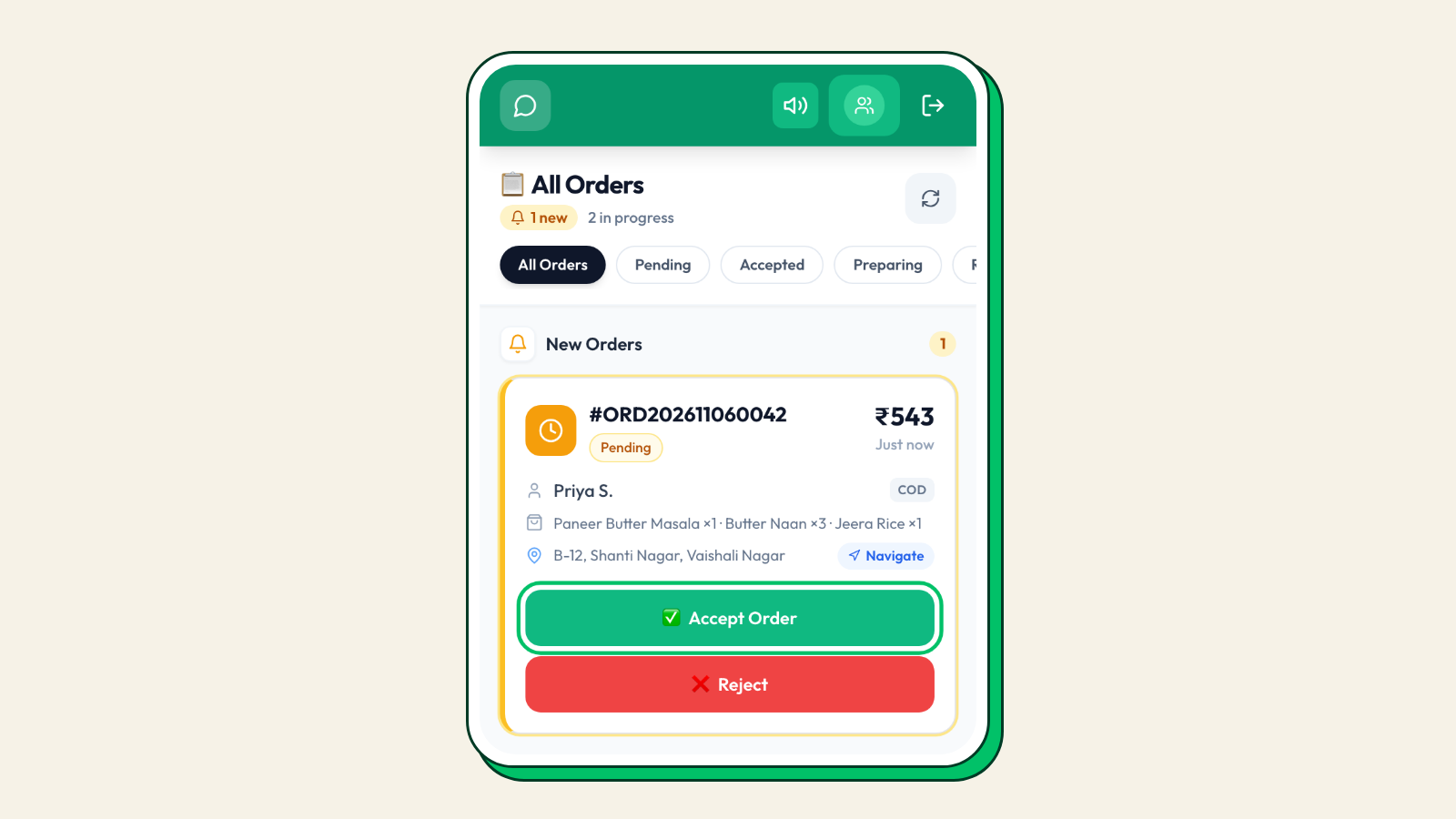
A staff member opens the Tezzu staff app and sees the orders waiting for them. A new order arrives: the phone plays the new-order alert, the order appears in the list, and tapping it shows the full detail, including add-ons, instructions and the table number or collection time. They accept it, and the order moves through its steps: out for delivery and delivered for a delivery order, picked up for pickup, or served for dine-in. The customer gets a WhatsApp message as the status changes.
On the dashboard, the owner sees the same orders, the earnings view and the staff list with each person's role, and sets the order flow that decides who handles each step. Staff logins are included on every plan, and how many you can create depends on the plan, so check pricing for the one that fits your team. Plans start at ₹999 a month with a flat ₹10 per order and no commission, after a 7-day free trial. Creating staff logins and installing the app is one short step in the Tezzu setup playbook, after the menu and payments.
Put the kitchen on alerts this week
Start the free trial, create a login for each staff member, install the app on the kitchen phone and send yourself a test order.
Start your free 7-day trialFrequently asked questions
Does the Tezzu staff app alert staff when a new order arrives?
Yes. When a new order comes in from WhatsApp, your store page or a table QR code, the staff app gives the staff assigned to new orders an alert with a sound. They open the order, see what was ordered and accept it from the app. If a phone does not ring, check that the new-order step in your order flow is assigned to a role and that the phone's volume and battery settings are not blocking the app.
Can more than one staff member use the staff app?
Yes. Every staff member gets their own login with a role, so the counter, the kitchen and the riders each use the app on their own phone. Separate logins mean you can remove one person's access when they leave without changing anyone else's. How many staff logins you can create depends on your plan.
Why does my restaurant order alert app not ring?
Usually a phone setting: the volume turned down, silent or do-not-disturb mode, notifications switched off for the app, or battery optimisation putting the app to sleep in the background. The other common cause is setup: nobody is assigned to the step where new orders arrive, or the staff member was logged out after a reinstall. Check those, then send a test order and listen for it where your staff actually stand.
What is the difference between the staff app and the dashboard?
The dashboard is the owner's tool: menu, prices, delivery zones, payments, campaigns, reports, staff logins and the order flow. The staff app is for the shift: getting new-order alerts, accepting orders and moving them through their statuses. Most small kitchens run service on the staff app and leave the dashboard to the owner or a manager.