A restaurant management app, in practice, is whatever lets you see every order, change the menu, watch the money and reach your staff from the phone in your pocket, because that is where you are for most of the day: at the supplier, at the bank, at a second outlet, or at home at 11pm when the last delivery order lands. A restaurant management app earns its place when it was built for the phone first. It fails when a desktop tool has been squeezed onto a small screen and every job takes six taps and a pinch-zoom.
This guide covers the jobs that must work on a phone, a morning, service and close-of-day routine built around it, how staff use their own phones without seeing everything, and the few tasks that still deserve a laptop.
What a restaurant management app has to do on a phone
Six jobs account for almost everything an owner does during the day. If the app cannot do each of them in under ten seconds, you will stop using it and go back to calling the counter.
- Show new orders the moment they arrive, with a sound you can hear over a kitchen exhaust, and the items, address, payment mode and order type visible without opening anything.
- Change an order's status in one tap: accept, preparing, ready, out for delivery, delivered, served. With a reject button that asks for a reason.
- Switch an item off when the paneer runs out at 8:40pm, and back on in the morning, without editing the whole menu.
- Show today's money: orders, revenue, cash versus online, split by channel.
- Alert staff on their own phones, so a new order does not depend on you forwarding it.
- Message a customer about their order from the same thread the order came in on.
Everything else, from delivery zones to campaign reports, is useful on a phone but not daily. The table below sorts the common tasks by where they belong; what the system behind these screens should do is covered in the order management system guide.
| Task | Phone | Laptop | How often |
|---|---|---|---|
| Accept, update and close orders | Always | Rarely | All day |
| Mark items sold out or back | Always | Rarely | Daily |
| Check today's revenue and order count | Always | Sometimes | Daily |
| Reply to a customer or complaint | Always | Rarely | Daily |
| Add a staff member or change a role | Fine | Fine | Monthly |
| Send a WhatsApp campaign | Fine for a short offer | Better for copy and images | Weekly |
| Build or restructure the menu with photos | Painful | Yes | Quarterly |
| Set delivery zones and charges | Painful | Yes | Rarely |
| Monthly accounts and GST | No | Yes | Monthly |
The morning routine: ten minutes before you leave the house
Open the app with your first cup of tea and go through five screens in order.
Yesterday's numbers. Orders, revenue, cash versus online, cancellations. You are looking for anything that moved: a cancellation count of six when it is usually one, an online share that dropped. The twelve Monday KPIs are the longer version of this; the daily check is thirty seconds.
Today's menu. Turn on what the kitchen confirmed is in stock, turn off what is not. If you run a breakfast and lunch menu, check the scheduled switch is set for today's weekday. Festivals and Sundays are where scheduled menus go wrong.
Scheduled orders. Pre-orders and pickup slots booked for today, with their times, so the kitchen knows what is coming before the walk-ins start. A 1pm pickup of twelve thalis for an office should be visible at 9am.
Staff. Who is on today, who has the app installed, whether yesterday's new rider has a login. A new order that only one phone can see is a single point of failure.
Campaign wallet and replies. If you sent a weekend offer, check the replies that need a human, and check the prepaid wallet has enough balance for the next send.
During service: what the phone must do without you looking at it
Between 12 and 3 and again from 7 to 10, you should not be staring at a screen. The app's job is to interrupt you only when it matters.
New-order alerts that cannot be missed. A push notification on a locked phone is easy to swipe away. A loud, distinct alert sound on a phone that stays in the kitchen, plugged in with the volume up, tells the cooks an order has come in without anyone carrying the news from the counter. The order notifications guide goes through the phone settings that silently mute these alerts.
Accept within two minutes. The customer is watching their chat for the confirmation. On a prepaid order, their money has left their account and nothing has happened yet. Whoever is nearest the counter accepts; it does not have to be you.
KOT to the printer, not to a screen. The kitchen should get a printed ticket when the order is accepted. Cooks do not read phones with wet hands. A thermal printer connected to the ordering system removes the step where someone shouts the order through the kitchen door and gets it wrong.
Cash on delivery flagged. The rider needs to know before leaving whether to collect cash, and how much. Put the payment mode on the KOT and on the rider's app screen.
Rider handoff in one tap. Out for delivery is tapped by whoever hands over the bag. The customer gets the message automatically; you do not type it.
After close: the five-minute review
Before the shutters come down, four things on the phone.
- Orders by channel and the day's revenue, compared with the same day last week. Not the total alone; a strong delivery app day with a weak direct day is still a weak day for margin.
- Cancellations and rejections, each with its reason. Three rejections for "item unavailable" means the morning menu check was skipped.
- Ratings and reviews that came in after delivery. Reply to the bad ones tonight, briefly and without arguing, while the order is still fresh in the customer's mind.
- Cash reconciliation: COD collected by each rider against COD orders delivered. This is the one that catches problems early if you do it daily and never if you do it monthly.
Staff on their own phones: who sees what
The main objection to running on phones is that staff phones are personal, shared, lost and lent. Roles and permissions are the answer, and they decide whether the setup is safe.
The split to aim for: the kitchen sees orders and statuses, and nothing about revenue or customers. A rider sees the orders they are delivering, with address and payment mode. A manager sees what they need to run the shift. The owner sees all of it, and is the only one who can export the customer list. A staff member who leaves has their login removed the same day. The staff roles guide lays out a permission matrix you can copy.
Two more rules. The WhatsApp number that customers message belongs to the business, and the ordering system handles replies, so no staff member is logged into the owner's WhatsApp on a personal phone. And the owner account has a strong, unshared password, because the dashboard holds every customer phone number you have earned.
What should stay on a laptop
A phone is wrong for a few jobs, and forcing them onto it wastes an evening.
- Building the menu from scratch, with photos, variants, add-ons and combos. Do it once on a laptop, then make daily changes on the phone.
- Drawing delivery zones and setting distance-based charges. Maps need a bigger screen.
- Writing campaign copy and picking images. Short offers are fine on the phone; a monthly plan is a laptop task.
- Monthly accounts, GST filing and exporting order reports to your accountant.
Keep a shortlist of these for the one laptop session a week. Everything else should be the phone, or the system is not mobile-first.
What this looks like on Tezzu
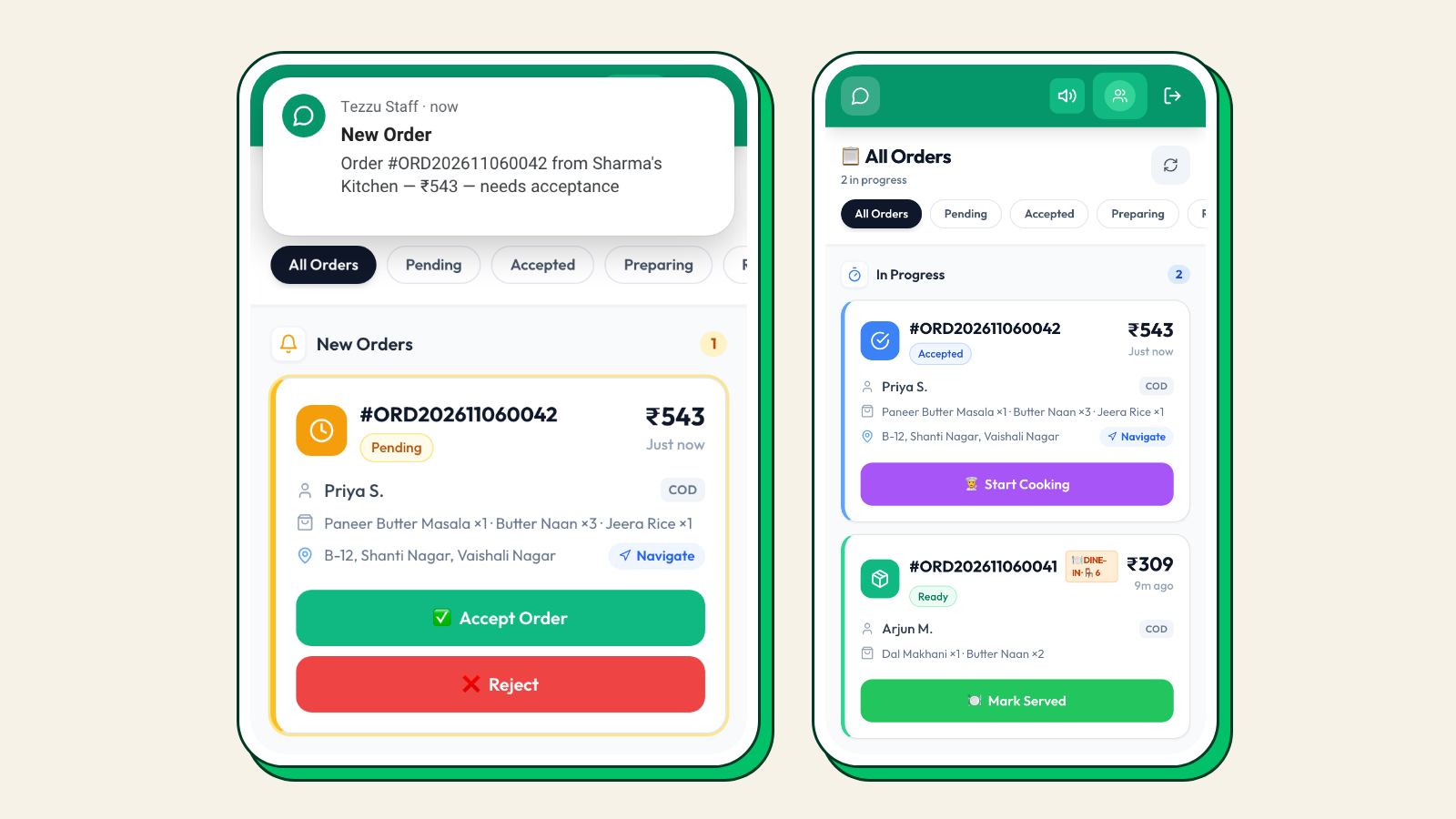
Tezzu's live dashboard runs in a phone browser, with orders, revenue and customer insights on the first screen, and a separate staff app for the people on the floor. The staff app gives your staff a new-order alert with a sound, so a cook at the stove knows an order has arrived, and staff accept and update orders from the same app. Each staff member has their own login with a role. Status steps follow the order type: delivered for delivery, picked up for pickup, served for dine-in, with the table number carried through.
Items can be switched off and on from the phone, and menu scheduling by weekday and time handles the breakfast-to-lunch switch on its own. KOTs print to a thermal printer when an order is accepted. Staff roles and permissions decide who sees orders and who sees revenue and customers, and the owner account stays with the owner. WhatsApp campaigns run from a prepaid wallet, so the balance check in the morning routine is one screen. Setting up the alerts, roles and the kitchen phone is covered in the staff app guide.
Run tomorrow's service from your phone
Set up your menu and WhatsApp number in about thirty minutes, install the staff app, and see every order land on your phone during the free trial.
Start your free 7-day trialFrequently asked questions
Can I manage my restaurant entirely from my phone?
Day to day, yes: accepting orders, updating statuses, switching items off, checking revenue, replying to customers and alerting staff all work well on a phone with the right system. A few setup and monthly tasks, such as building the full menu with photos, drawing delivery zones and doing GST accounts, are faster on a laptop. Plan one laptop session a week and keep the rest on the phone.
What is the best restaurant app for owners?
The right one depends on where your orders come from. If most orders arrive on WhatsApp and your own store page, you want an ordering platform whose dashboard and staff app are built for the phone, with loud new-order alerts, one-tap statuses and roles for staff. If you are mainly dine-in with a billing counter, a POS with a mobile companion app may fit better. Test the new-order alert on a locked phone before deciding.
How do staff get order alerts on their own phones?
Through a staff app tied to their own login, rather than through the owner's WhatsApp. Each staff member installs the app, logs in with their own account and role, and gets a new-order alert with a sound for the orders their role handles. The owner can remove a login when someone leaves. Check the phone's battery saver and notification settings, which commonly silence alerts on Android.
Is it safe to give staff access to the restaurant dashboard?
It is safe when access is role-based. Kitchen and rider logins should see orders and nothing about revenue or the customer list. Only the owner should be able to export customers or change billing. Keep the owner account to the owner, remove logins the day someone leaves, and never share a single password across staff phones.